
1. Purpose
Since our platform is not immune to hacker attacks, we are implementing additional security measures. As centre administrators, you have extensive rights on the platform, such as posting blog entries and publications. It is therefore particularly important that this access is protected. For this reason, we are now introducing two-factor authentication (2FA) for centre administrators.
2. Accessing the 2FA Setup
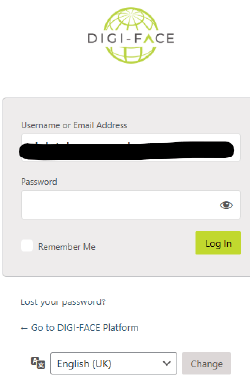
Navigate to: https://www.digiface.org/wp-admin/
Log in with your credentials.
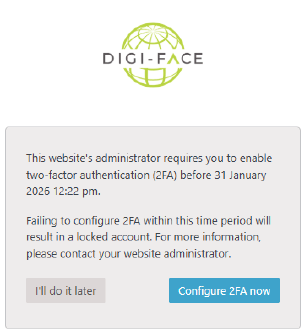
You will be prompted to configure Two-Factor Authentication. It is strongly advised to configure this immediately.
3. Configuring Two-Factor Authentication
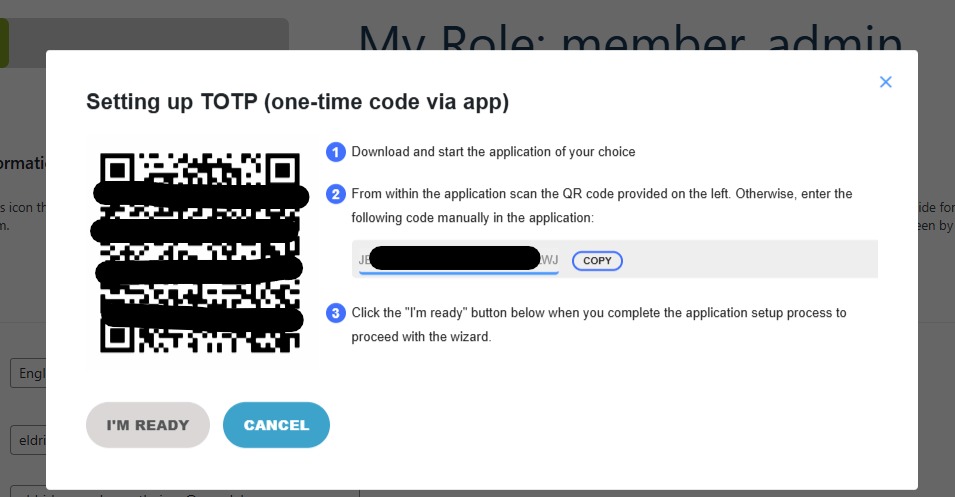
You will be redirected to your User Profile page where a QR code will be displayed.
4. Setting Up Your Authenticator App
Open your authenticator app (Google/Microsoft Authenticator/Aegis or any other authentication application available on your application store). If you do not yet have an authentication app, please download one, for example: Microsoft or Google Authenticator
Select the “+” option to add a new account. It might look similar to this:
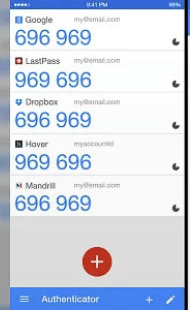
Choose the ‘scan a QR code’ option and scan the QR code shown on the DIGI-FACE platform.
You will see that a new code for the DIGI-FACE platform and your user account will be created in your application.
Once this is done, select ‘I’m Ready’ back on the platform.
5. Confirming Setup
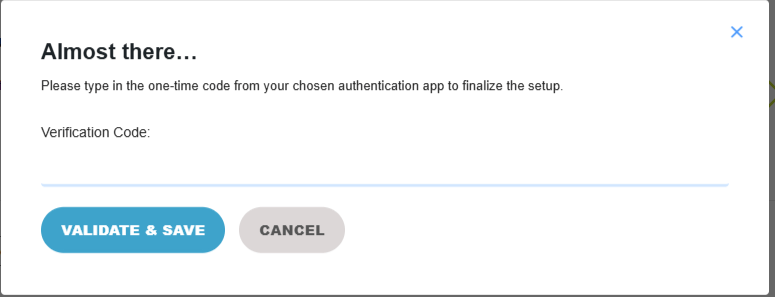
Enter the 6-digit verification code generated by your authenticator app and select Validate and Save.
6. Backup Codes
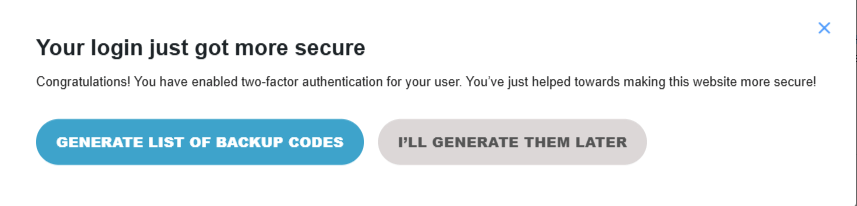
Generate and securely store backup recovery codes. These can be used if you lose access to your phone. You can copy, print or even email the codes to yourself. Store them in a safe, secure place!
7. Completing the Wizard
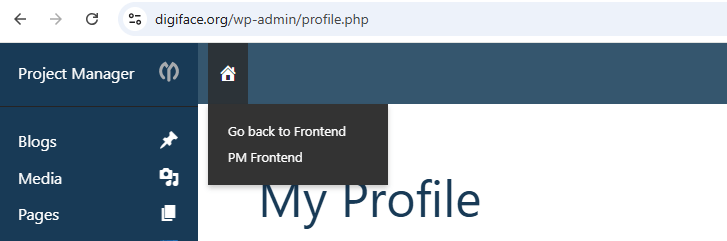
Click ‘I’m Ready’, Close the Wizard to finish setup and return to the front end. You can then exit your profile by hovering over the ‘Home’ icon and choosing ‘Go back to Frontend’.
8. Logging In with 2FA Enabled
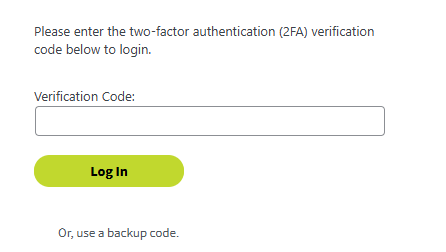
Future logins to https://www.digiface.org will require both your password and a verification code from your authenticator app.
9. Support
For assistance, please contact the DIGI-FACE support team by logging a ticket – https://www.digiface.org/new-ticket/
Thank you for helping maintain a secure platform environment.